
Preview Error Notice
Previously, if an invalid entry was made in a text field, the preview could get stuck on a spinning "saving" icon with no clear indication of what went wrong.
Now, when a change can't be previewed — for example, due to an invalid input in a text field — you'll see a clear message at the top of the editor:
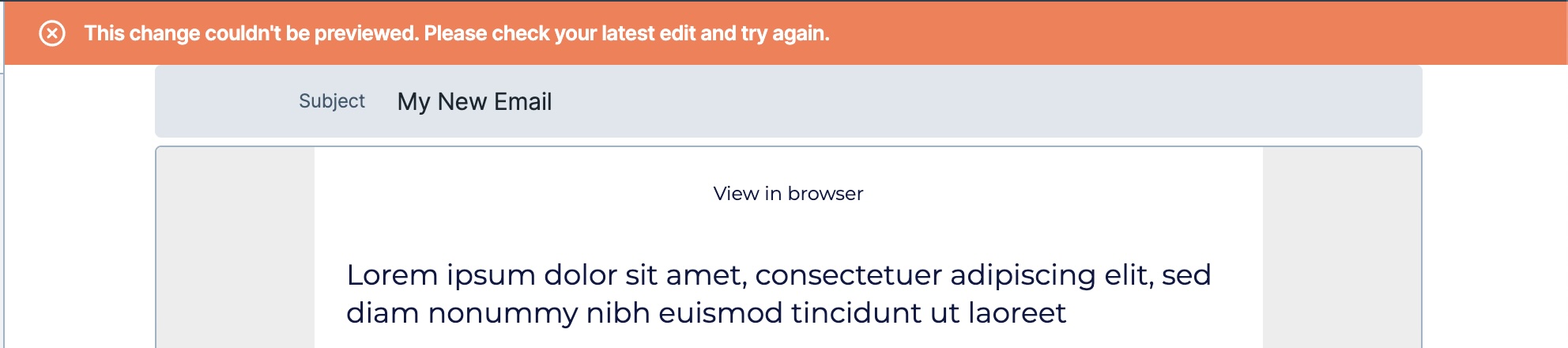
What this means for you:
- You'll know right away if something needs your attention, instead of waiting on an unresolved spinner.
- The message points you to the fix — check your most recent edit for any invalid or unsupported input.
- The rest of the editor remains fully visible and usable, so you can correct the issue immediately without losing your work.
What to do if you see this message:
- Review the most recent change you made to a text field.
- Check for unsupported characters, formatting, or incomplete entries.
- Update the field and the preview will refresh automatically.
If the issue persists after reviewing your edit, please reach out to support for further assistance.